What is Zapier?
Zapier is a no-code automation platform that connects thousands of web applications together. It lets you create automated workflows - called Zaps - that move data between apps automatically, without writing a single line of code.
For example, you could set up a Zap that automatically sends a Slack message every time a new project is created in wethod, or one that adds a row to a Google Sheet whenever an invoice is sent.
Each Zap is made of two parts:
- Trigger - the event that starts the workflow (e.g., "a new project was created in wethod").
- Action - what happens as a result (e.g., "send a message in Slack" or "create a row in Google Sheets").
You can chain multiple actions together in a single Zap, making it possible to build complex workflows that save you hours of manual work every week.
Connecting wethod to Zapier
Step 1: Create a Zapier account
If you don't have one yet, sign up for a free account at zapier.com.
Step 2: Find the wethod app in Zapier
From your Zapier dashboard, click Create a Zap (or the + button). In the trigger search box, type "wethod" and select the wethod app from the results.

Step 3: Authenticate your wethod account
When prompted to connect your wethod account, you will need to provide two pieces of information:
| Field | Description |
|---|---|
| API Token | Your personal API token, the same one used for the REST API. You can create one from your Account settings. |
| Company | The name of your wethod company. This is the subdomain you use to access wethod. For example, if you log in at https://acme.wethod.com, your company name is acme. |
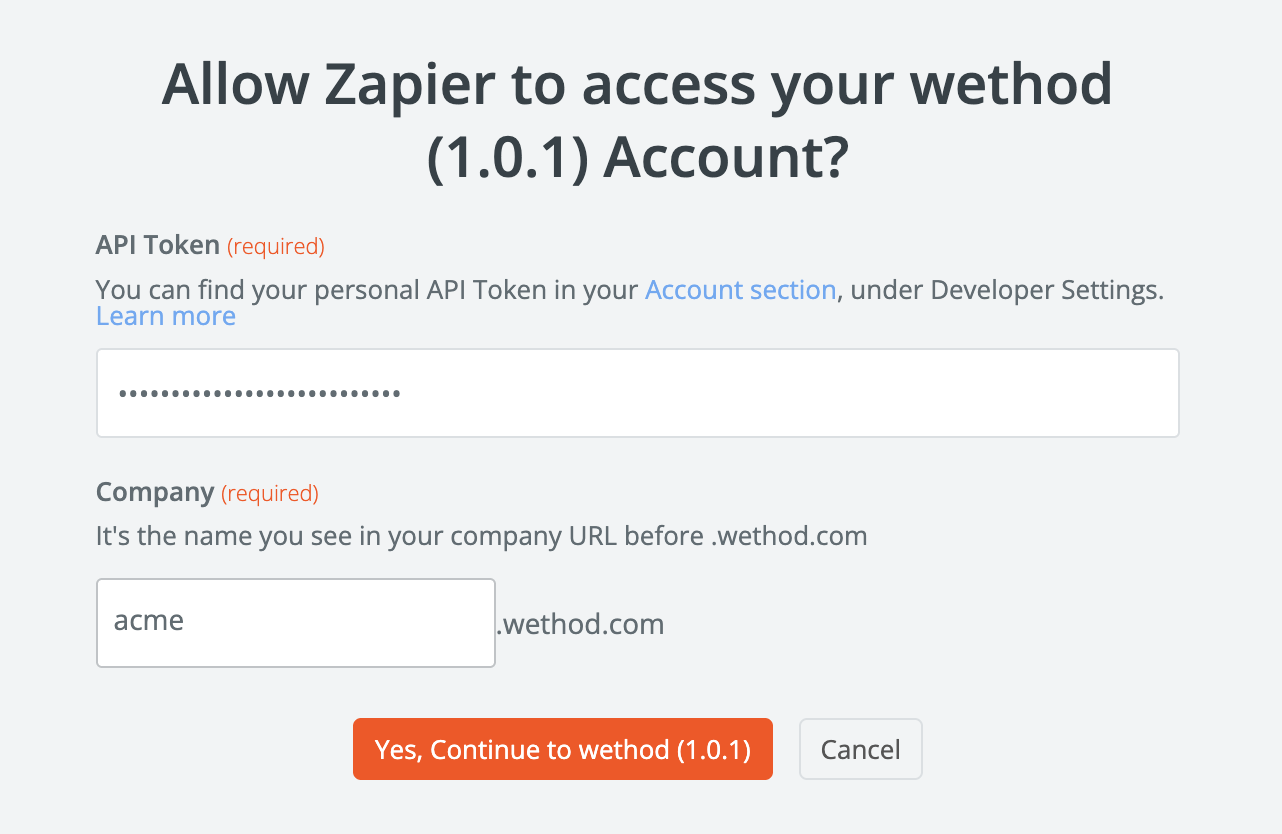
After entering your credentials, Zapier will verify the connection. If everything is correct, you will see your wethod account listed as connected and ready to use.
The API token grants the same permissions your user has in wethod. Make sure your account has the necessary permissions to access the data you want to automate.
Triggers and Actions
Triggers
A trigger is the event in wethod that starts your Zap. Whenever the event occurs, Zapier automatically kicks off the workflow.
Here are some examples of available triggers:
| Trigger | Description |
|---|---|
| New Project | Fires when a new project is created in your wethod company. |
| Updated Project | Fires when an existing project is updated. |
| Sent Invoice | Fires when an invoice is sent. |
These are just a few examples - more triggers are available directly in the Zapier editor when you configure your Zap.
Actions
An action is a task that Zapier performs in wethod (or in another connected app) after a trigger fires.
wethod provides Find actions that let you look up a specific resource by its ID. Here are some examples:
| Action | Description |
|---|---|
| Find Project | Retrieves the full details of a project given its ID. |
| Find Person | Retrieves the full details of a person given their ID. |
These actions are especially useful when working with normalized data (explained in the next section).
Understanding normalized data
When a wethod trigger fires, the data it returns is normalized. This means that related resources are represented by their ID (a numeric key) rather than by their full details.
For example, when the New Project trigger fires, you might receive data like this:
{
  "id": 42,
  "name": "Website Redesign",
  "client_id": 7,
  "pm_id": 15,
  "job_order_category_id": 3,
  "value": 25.0,
  "probability": 90,
  "date_start": "2025-03-01",
  "duration": 4
}
Notice that client_id, pm_id, and job_order_category_id are just numeric IDs - you don't immediately
see the client's name or the project manager's name.
Resolving relations with Find actions
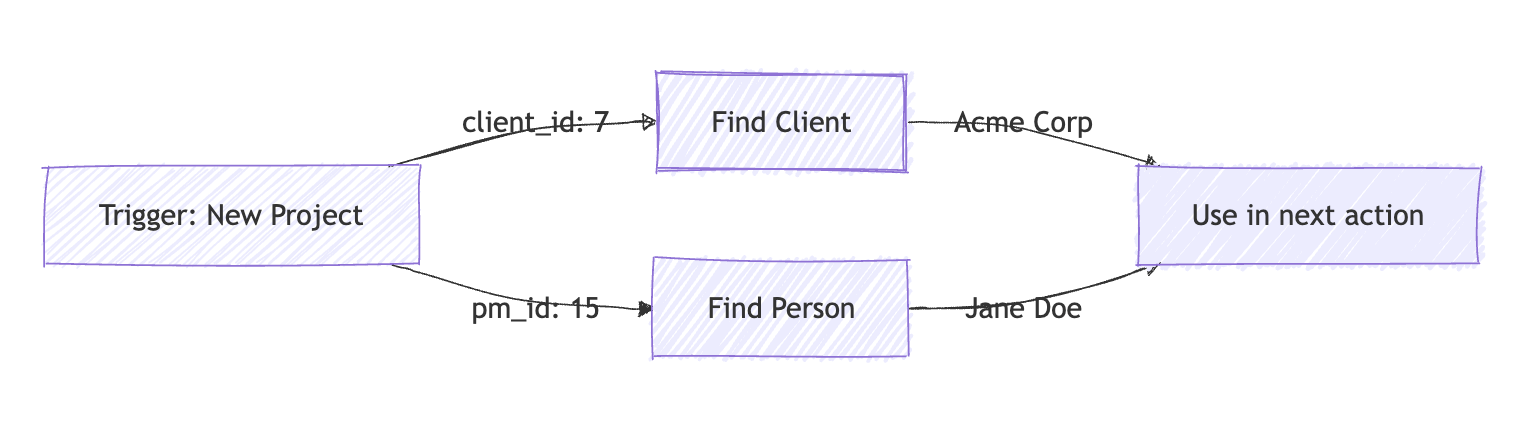
To get the full details of a related resource, you can add a wethod Find action as a subsequent step in your Zap. For example:
- Trigger: New Project fires and returns
client_id: 7. - Action: Use Find Client with ID
7to retrieve the client's full details (name, email, etc.). - Action: Use Find Person with ID
15to retrieve the project manager's name.
This approach gives you full flexibility to compose the data you need, fetching only the related details that matter for your specific workflow.
Example: Building your first Zap
Let's walk through a complete example. We'll create a Zap that sends a Slack message with the project name and client name whenever a new project is created in wethod.
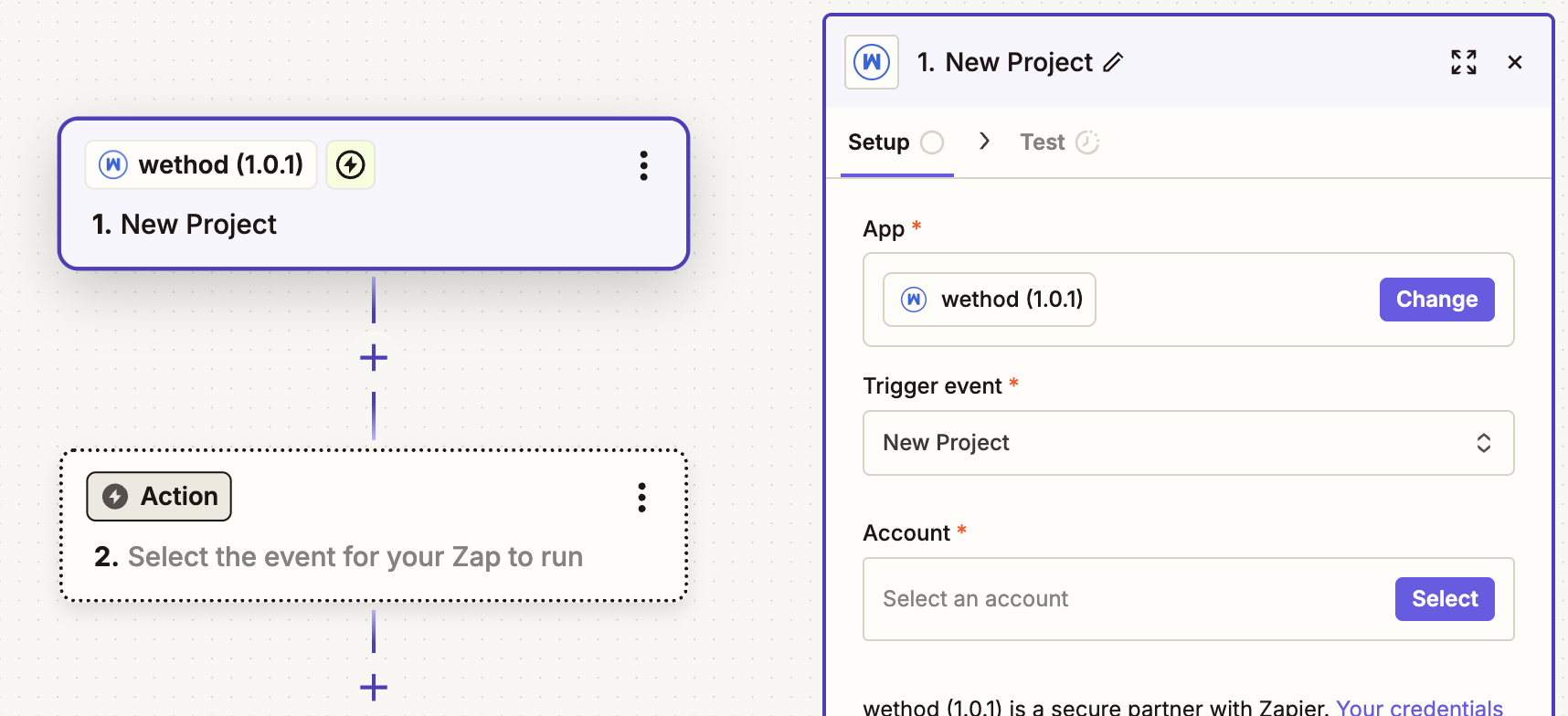
Step 1: Set up the Trigger
- In Zapier, click Create a Zap.
- Search for wethod and select it as the trigger app.
- Choose New Project as the trigger event.
- Connect your wethod account (if you haven't already).
- Test the trigger - Zapier will pull in a sample project from your wethod account.
Step 2: Look up the Client
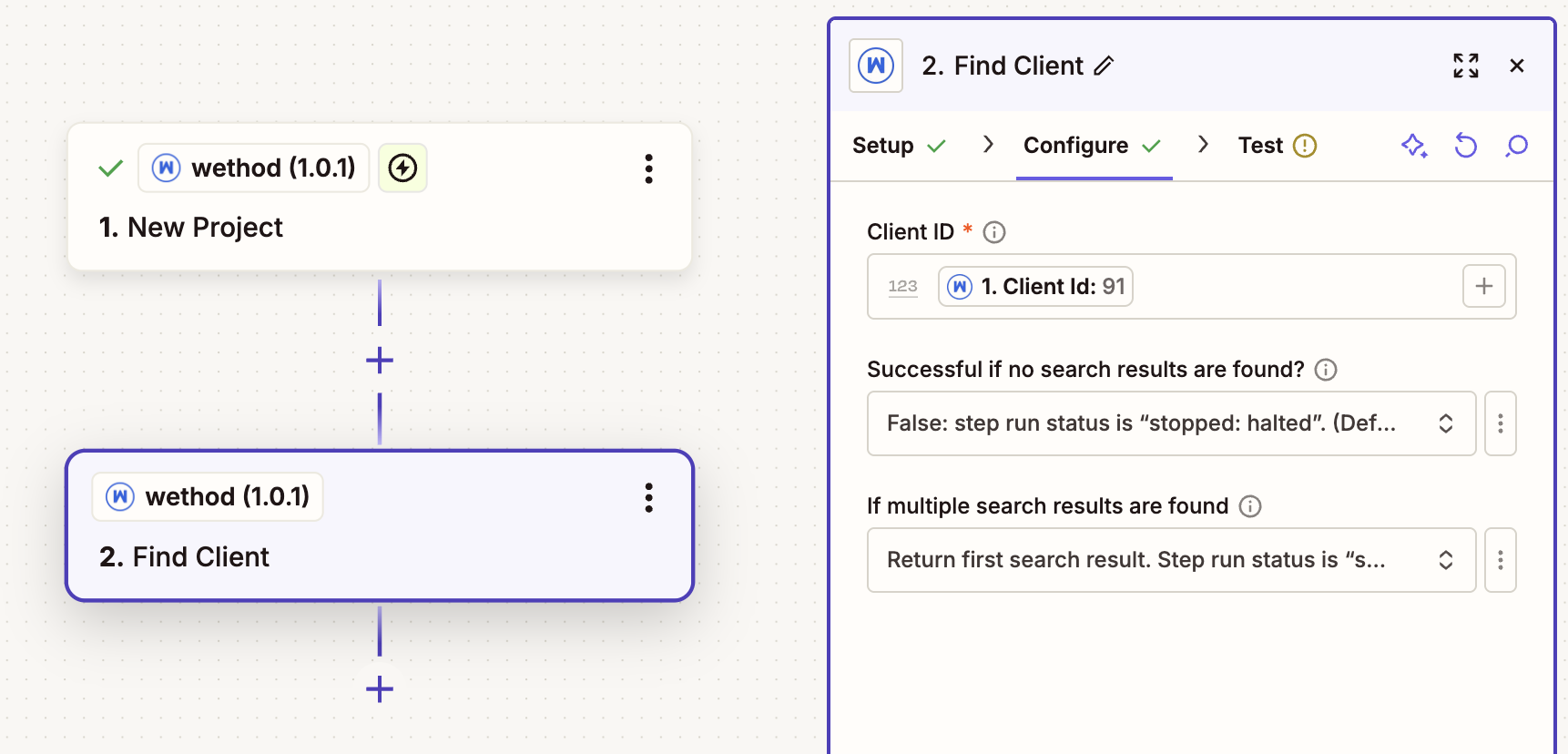
The trigger returns a client_id but not the client name. Let's resolve it:
- Add a new step and search for wethod again.
- Choose Find Client as the action.
- In the Client ID field, map the
client_idvalue from the trigger step. - Test the step - you should see the full client details, including
corporate_name.
Step 3: Send a Slack message
- Add another step and search for Slack.
- Choose Send Channel Message as the action.
- Select the Slack channel where you want to post.
- Compose your message using data from the previous steps, for example:
New project created! Project: Website Redesign Client: Acme Corp Value: 25K
- Test and turn on your Zap.
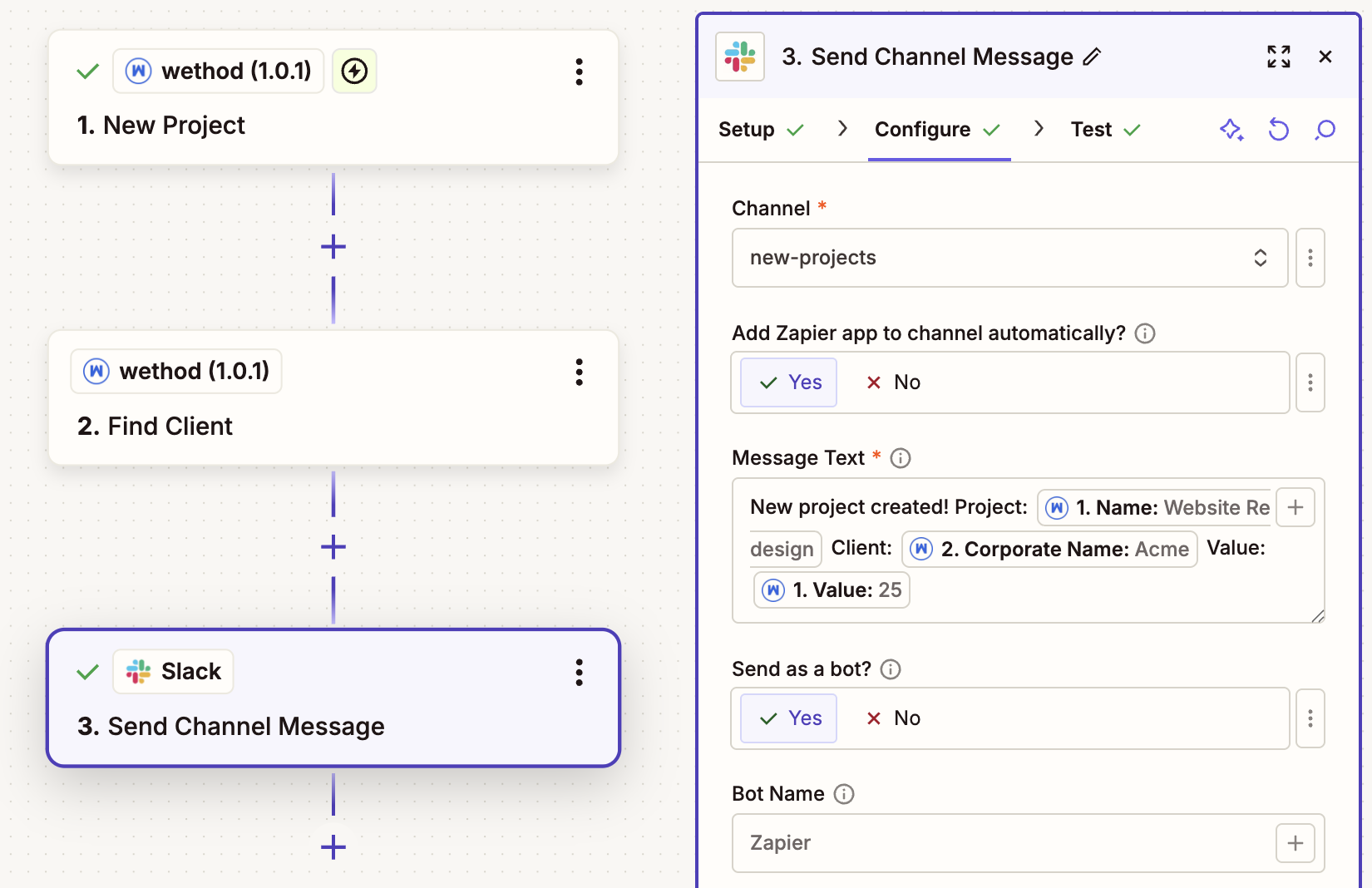
That's it! From now on, every time a new project is created in wethod, a message will be posted automatically in your Slack channel.
Need more triggers or actions?
The triggers and actions listed above are just examples. You can find the full list of available triggers and actions directly in the Zapier editor when you build your Zaps.
If you need a trigger or action that is not currently available, or if you have any questions about the integration, please contact us at info@wethod.com.